Web Platform and Hosting Selection
Selecting the right web platform for your business can be confusing and overwhelming. In this section, we will explore why I choose WordPress and how to get started now!
WordPress Installation and Settings
WordPress setup is simple if you know what you’re doing. Here we will go step-by-step in setting up WordPress for optimal performance in our online business.
Pages, Posts, and Basic Customization
The WordPress content management system uses pages and posts to organize your content. Let’s dig into how to best use them to build and grow our online businesses.
Let’s jump right in…
Starting a website can be a little scary. In this guide, we will explore a comprehensive step-by-step procedure for starting and setting up a WordPress website for your business.
The Basics (in Q/A format)…
Below is a list of commonly asked questions I’ve been asked on starting a website. Use this section to determine if building a website is the right fit for you and your business.
HOW DO I BEST USE THIS GUIDE?
I wanted to create a guide that could walk my readers step-by-step through the PROCESS, STRATEGY, TOOLS, and PERSPECTIVE of crafting a truly unique and valuable platform for your online business.
The guide is meant to be followed sequentially (that is how it was written). That being said, if you already have a WordPress site or are still considering the possibility of it, this guide is packed with value that can be extremely valuable for you and your brand.
If you need help outside this guide or find a certain part of it hard to follow. incomplete, or confusing reach out to me at joseph@buildyourstampinsite.com, I’d be happy to help!
HOW MUCH DOES IT COST?
The cost of building your website depends on the intended use and purpose of your website. If you want a simple blog with limited business functionality, you can create a website and create content for FREE. If you’re looking to create the next social media platform, that type of site requires often a team of people and a lot of capital to build.
This guide will be somewhere in the middle – teaching you how to start and build a WordPress site to support your online business for less than $100 per year.
WHAT DO I NEED TO START?
The great news is you don’t really need anything to start! All you’ll need is this guide and about an hour of time and you’ll be up and running with a brand new WordPress site for your business
This guide will walk you through the steps of:
Selecting a Web Platform
Setting up Web Hosting
Setting up Your WP Site
Selecting a Theme for your Website
Creating Content on your Website (Pages & Posts)
Installing Important Plugins
Launching Your Website
HOW LONG DOES IT TAKE TO BUILD A WORDPRESS SITE?
To be honest, your site will never really ‘feel done’. You will always be tweaking and optimizing your website so that it will perform better for you and your brand. Having this flexible view of online business will allow you to bend and grow to the new shifts in the industry, the technology, and your audience.
The short answer is you will have a functioning WordPress site you can continue to build upon within an hour! So if that’s something you’re interested in, keep reading!
HOW MUCH TECHNICAL ‘KNOW-HOW’ DO I NEED?
WordPress is in the middle of the spectrum when it comes to technical difficulty and ‘know-how’. This allows the platform to be flexible and powerful to meet the unique and specific needs of your online business.
Don’t let that scare you! WordPress has built-in functionality and customization in the form of themes and plugins that do the hard work for you, so you can focus on the things you love and less on the technical things. Also, this guide and many more online make learning and optimizing your WordPress website a breeze.
If, at any time, you run into issues or need some help getting started, reach out to joseph@buildyourstampinsite.com. I would love to help you!
Selecting a Web Platform for your Online Business
There are many options you have to when selecting a Web Platform for your Online Business. This is an important decision that will guide the functionality and design of your website for years to come.
My recommendation for creators looking to start a website for their online business is WordPress. This platform offers the performance and flexibility to grow with your business, all while staying in budget. To see my full review of different web platforms, check the post below!

Setting up Web Hosting
WordPress itself is FREE and open-source, requiring that you host your site by yourself, or through a company. This guide walks you through the process of using a company called Bluehost to host your website on the internet.
Why Bluehost?
Bluehost is the company I use to host all of my online business websites. I use it because it is cost-effective, easy-to-use, and has unique features that make starting out really easy!
With Bluehost, you will get your domain name and business email [name@yourdomain.com] for FREE – I’ll even show you how to set it up!
Step-by-step through Bluehost
In this section, we will walk through each step associated with starting your WordPress site.
If you need help with any part of this, email me at joseph@buildyourstampinsite.com
STEP ONE – GO TO BLUEHOST
By clicking the link below, you will open Bluehost in a new tab. From there, you can easily follow step-by-step through the rest of the guide. Next, you will want to click “get started now”.
Check out Bluehost!STEP TWO – SELECT YOUR PLAN
Below you will see a screenshot of the different plans offered by Bluehost [taken at the time of writing].
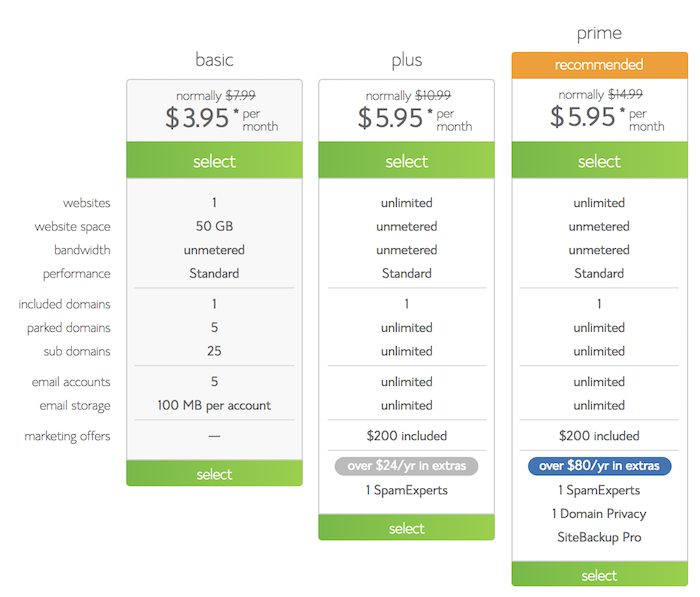
Screenshot from Bluehost – showing the possible plans you can choose from [5.30.18].
At the time of writing the PRIME and PLUS options are the same price, I would recommend going with the PRIME plan for $5.45/mo. (A fantastic deal when other web platforms can charge up to $30/mo) The BASIC plan is fairly limited and I would recommend going with one of the unlimited plans.
STEP THREE – CHOOSE YOUR DOMAIN NAME
After selecting your plan you will see a screen that asks you to create your domain name. I personally recommend using the .com extension over any of the others, it makes sharing and searching for your website much easier. Making it easy-to-spell, easy-to-remember, and closely related to your business are best practices when selecting a domain name.
Using a tool like namecheckr.com will allow you to choose a domain name that you can also bring into your other online business platforms (Facebook, Instagram, Youtube, Pinterest, etc.)
Enter your desired domain name into Bluehost to continue. If you already have a domain name from a previous site or have purchased it separately, enter it on the right. (Screenshot below).
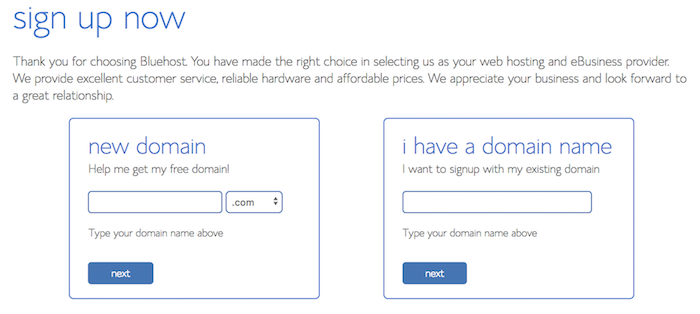
Screenshot from Bluehost – showing the domain name input screen [5.30.18].
STEP FOUR – CREATE YOUR ACCOUNT
First, simply fill out the “account information” section of the Bluehost form or use Google Single Sign-on to register your personal information.
Next, in the “package information” section, select the term length you desire for hosting (the 36-mo period is the sweet spot for pricing). You can uncheck the “Site Security – Find” option as we will implement plugins to harden site security. The recommended feature selection is shown below in a screenshot.
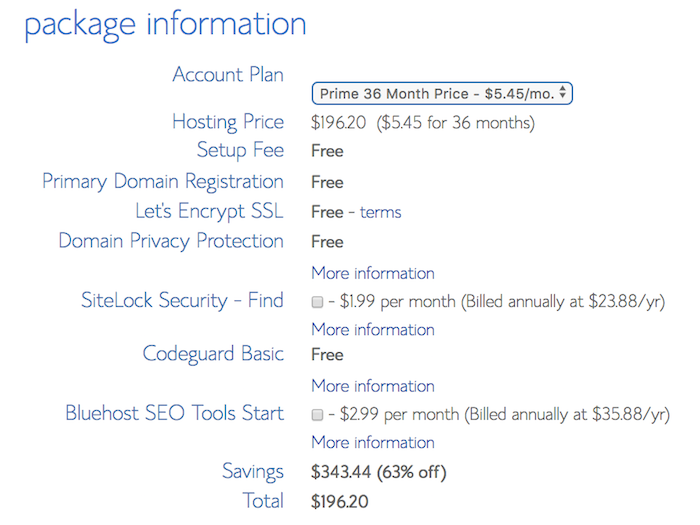
Screenshot from Bluehost – showing the domain name input screen [5.30.18].
Finally, in the “payment information” section, enter in your information and move to the next page. You’ll next need to create a password for your Bluehost account. This password will protect your entire site, make it very strong! Using letters, numbers, and symbols is best practice for password creation and remember, longer passwords are usually stronger.
**OPTIONAL**
If you need a tool to help keep your passwords organized, I use Dashlane. It keeps all my passwords safe and accessible with their mobile app. Dashlane will keep your passwords secure while giving you easy-to-use features like auto-fill so you never have to type your passwords again, and a powerful password generator to keep you and your online information safe!
Get the FREE Online Business Report Card
With over 20 over business categories and +5 pages of valuable and practical considerations to help your BUILD and GROW your online business and IMPACT your audience.
Check it out!Setting up WordPress (to work for you)
Below, I will walk through some of the settings that make your experience using WordPress more effective to creating, organizing, and sharing your website content.
CHANGING THE ADMIN USER
The first thing I recommend for all my clients is to create a new ADMIN user for themselves. But why? Don’t we automatically get one when we start? The answer is ‘yes’, but it’s not very secure. You will now login to your WordPress site by simply going to [*YOURDOMAIN.com*/wp-admin].
There are bad people out there that know this and may try to get into your account. To do so, they would need your USERNAME and PASSWORD. If you are still using the given USERNAME of “admin”, it makes your website and your online business that much more unsafe.
By simply creating a new ADMIN profile on your website, you enhance your overall website security. Below I will show you how to do this:
#1) Go to the USERS tab in the left sidebar
#2) Go to ADD NEW at the very top of the USERS page
#3) Fill out the fields to reflect your information
#4) Make sure the “Send the new user an email about their account.” box is checked
#5) Set the ROLE to “Administrator”
#6) Check your email that was used in the EMAIL field for new user details.
#7) Follow the Link in the email to create a strong password
#8) After creating your new account, delete the “admin” account and “Attribute all content to your new account”
[You can also delete all content if this is the first thing you do in your new WordPress site, as all other content is generic and you will end up deleting it anyways].
After creating your new user profile, click on your username and review any of the personal user settings you need to change, making sure that the information presented here is accurate.
YOUR WORDPRESS SETTINGS
WordPress organizes your site settings on the left sidebar in the “SETTINGS” section. This section is broken into various sub-sections for your website. In this next bit, I will make several recommendations for setting changes and explain a few that I feel are important and valuable.
General
In the GENERAL sub-section, you will see basic settings for your website. First, make sure your Site Title and Tagline are accurate to reflect you and your brand. Next, make sure that your WordPress Address and Site Address are accurate to the domain you have selected in earlier steps. Input the main Email that will be used for site notifications (comments, updates, etc.).
The next two fields are for if you want to have a membership type website that requires readers to create a profile. On my sites, Membership is left unchecked, and the New User Default Role is left as Subscriber.
The next section defines Site Language, Timezone, Date Format, Time Format, and Week Starts On. Select the settings that best identify your online business and the readers of your content.
The last few sections include Site Cache Level (which I leave as default – Level 2), Bluehost Auto-updates (which are left on for me), and lastly the Bluehost Coming Soon Page (which I recommend leaving on until your site is ready to launch).
Writing
In the WRITING sub-section, you can change the settings related to content creation. First, you can change the Default Post Category and Post Format (This would be a good idea if you have a custom category that is meant as a catch-all to your content, also changing the Default Post Format would be helpful in unique and niche situations)
Reading
In the READING sub-section of the settings, we will see changes related to how your content is presented on your website. The first selection is Your Homepage displays; this will define the overall structure of your website. What do you want to show on the homepage? Would you like your blog-stream or a custom homepage? The decision will define your platform as either a BLOG (Your latest posts), or a WEBSITE with a BLOG (A static page). I usually recommend the latter option (for online business) due to the flexibility offered in a website format rather than a blog. If you decide to go with the Static Page setup, you will need to define your HOME and BLOG pages [more on pages later].
Discussion
The DISCUSSION sub-section relates to how your audience can interact with your content. Being a large section and the settings ultimately being preferences, I will present a few considerations that should guide your selection of preferences.
Media
The MEDIA sub-section is related to your digital content (how it is displayed on your website and also how it is organized in the WordPress system) This section is rather short and doesn’t require any changes unless you feel it is necessary.
Permalinks
The PERMALINKS sub-section is related to your URL structure of individual pages and posts on your website. My recommendation is to select Post Name for your structure, this will ensure better SEO and URL slug management. The other settings are for changing the wording of “categories” to something custom like “topics” or “projects”.
Privacy
The PRIVACY sub-section is a new one that came with the new changes in internet privacy (GDPR 2018). This subsection will help you create and define the Privacy Policy of your website.
FIRST IMPRESSIONS MATTER…
Selecting a Theme for Your Website
In this section, we will discuss the topic of WordPress themes and how you can make your website look beautiful without a single line of code. Creating a nice-looking site is important and I’m here to help! Feel free to email me if you need help!
Quick Note:
You will be consistently changing and improving your website; that being said, I would recommend you choose something fast and make it “good enough” as soon as you can. Moving on and getting started will be the best thing for your brand.

A few things to consider…
In this section, we will explore the world of WordPress Themes. Follow along for a few important considerations for modifying the overall design of your website.
FREE OR PREMIUM THEMES?
A question I get all the time is – “Is it necessary to use a PREMIUM (paid) theme?” The short answer is – absolutely NOT. I would recommend you start with a FREE theme. That way you get a feel for what you value in a WordPress theme. Yes, you will be frustrated at times by the limitations associated with FREE themes, but they are often spending money on tools that end up not meeting the specific and unique goals of your online business.
I am a huge fan of paid themes, they can often help you communicate precisely what you want to your readers. PREMIUM themes have unique features that can help you BUILD and GROW a better online presence on your website. But it is not NECESSARY, especially at the beginning.
WHERE DO I FIND THEMES?
WordPress has a fantastic selection of both FREE and PREMIUM themes. Simply go to the APPEARANCE and then THEMES on your WordPress DASHBOARD. This page will show your current library of WP themes. To get access to other themes click the link labeled WordPress.org Themes toward the top. This will take you to the WP theme marketplace where you can preview and install 1,000s of different themes. My favorite place to find themes to use is in the POPULAR tab on this page (where you can find 3,000+ great FREE WP themes).
When you find one that you like, simply INSTALL and then ACTIVATE the theme on your website. I recommend finding several themes that you like so that you can easily switch themes if you find one to be too limited for your business.
WHAT SHOULD I LOOK FOR IN A THEME?
When looking at themes, there are a few general considerations I make when choosing a theme for a WP site. The guiding questions I use when selecting are the following:
Is this theme relatively easy to use?
Is the theme mobile-responsive? (Will it work when used on a mobile device? Find out by shrinking the window to see your site change)
Is the theme compatible for eCommerce? (Only if you plan to have a shop on your site)
Does the theme allow me to use custom colors?
Is the overall structure what I’m looking for?
All of these questions are “deal-breakers” because they cannot be easily overcome outside of the theme itself. I currently utilize the Mesmerize PRO theme for Build Your Stampin’ Site.
HOW DO I CUSTOMIZE MY THEME?
Answering this question in a general sense is quite difficult. This is why I offer a service to build-a-site for my clients. The reason for it being difficult is that every theme is different; the customizations, the functions, the design aspects (and so much more) are ALL DIFFERENT.
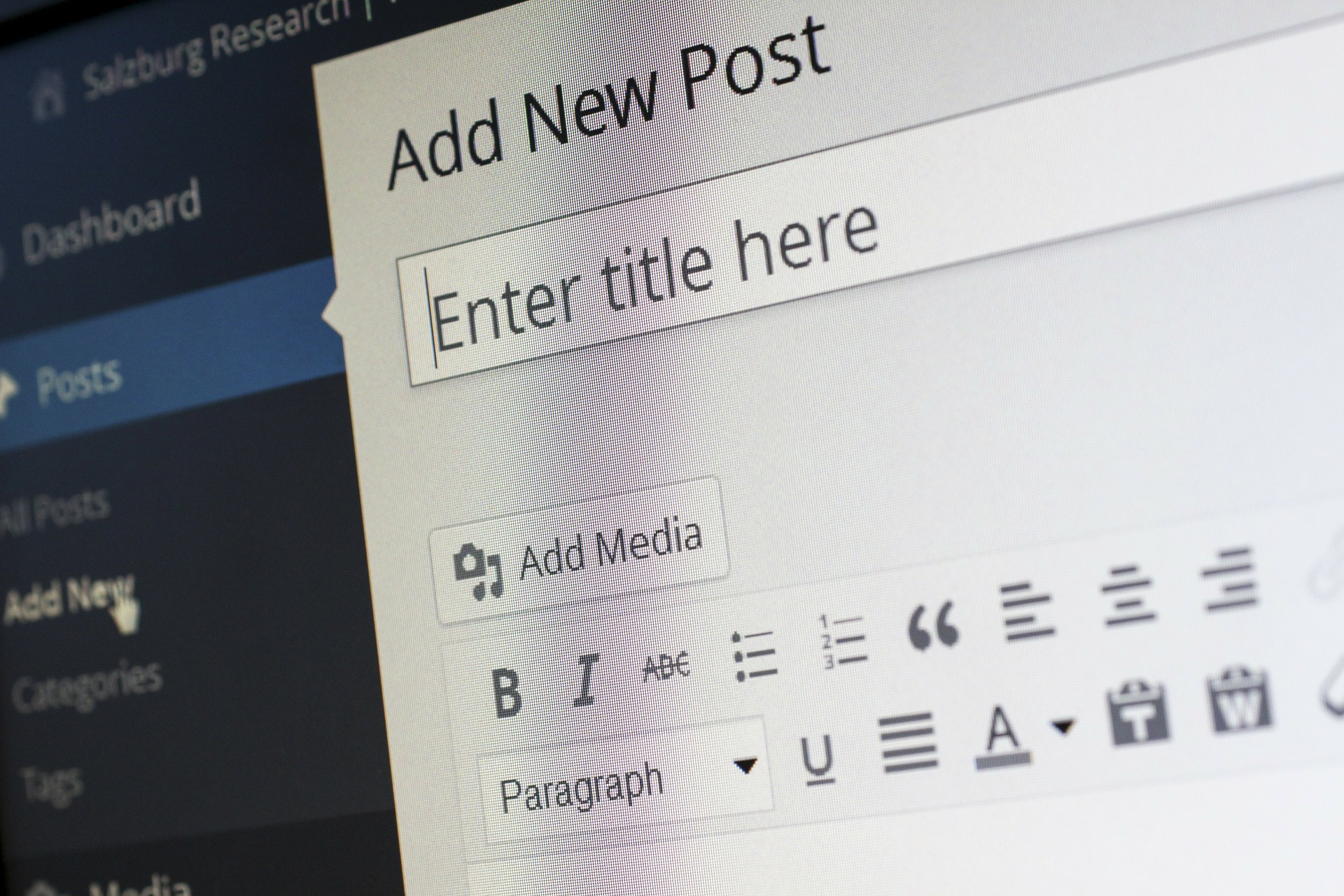
Creating and Organizing Content on WordPress
Pages, Posts, and Media
WordPress is considered a Content Management System (CRM). Its design makes WordPress a top performer when it comes to managing your content. WordPress does this through its PAGES and its POSTS. The MEDIA is organized separately for use in both pages and within posts.
Pages are the static web pages that act as building blocks for your site. (Ex. About Me, Start Here, Homepage, Blog Page, and many others)
Your posts are the pieces that make up your blog. (Ex. Top 10 plugins, A case for Email, etc.)
In this section, we will explore the use of Pages, Posts, and Media to BUILD and GROW your website.
WHAT IS THE DIFFERENCE BETWEEN A PAGE AND A POST?
The pages on your website are structural (they provide the shape of your site). These are semi-permanent pieces of content that can be accessed often by the MAIN MENU bar. Pages help contribute to the overall flow of your User Experience (UX) whereas posts, generally exist in the blog stream, are browsable, and have some type of Call To Action (CTA).
Initially, you will create a few pages that host important information that will likely not change too much over the course of your online business. You may come back and optimize the wording, or the goal of the page, but overall that content will ‘just be there’. Posts on the other hand, are more dynamic; they have a kind of life expectancy to them (and with that a sense of urgency). Your posts over time will get deeper and deeper into your blog stream.
WHAT PAGES SHOULD I HAVE ON MY WEBSITE?
In your BLOG page, you can post about whatever your heart desires. But when it comes to necessary PAGES, there are a few guidelines for that. If you are wanting your online business to reflect you, your life, and the things you do, it is highly advised to have an ABOUT ME page. This is often the most viewed page on a website, and rightfully so, people like to connect with other people. Don’t miss out on the opportunity you have to share about yourself and connect with your audience.
The next page I recommend having is a START HERE page. After you have created a bit of valuable content for your readers, you can curate that content in such a way that you tell a story or offer your services by providing your new visitors a “one-stop-shop” to your most valuable content, meeting your readers at whatever experience level they may be at.
The last page I recommend to all my clients is a type of CONTACT PAGE. Making yourself available to answer reader questions and to highlight their stories is HUGE. If you want a significant and lasting relationship with your readers, its vital that you give them a way to speak to you!
WHAT ROLE SHOULD MEDIA PLAY ON MY WEBSITE?
Your digital content (photos, videos, GIFs, etc.) is a crucial addition to your content on both PAGES and blog POSTS. Understanding why, when, and how to use media to emphasize your writing is a valuable skill. Generally, pages and posts with some type of eye-catching digital content get shared around the internet much more often than a post with only words.
This is the topic of my first ever Ultimate Guide – Blog Images. I would recommend reading this guide as well in order to understand both the “why” and the “how” of utilizing beautiful images on your website! You can read it below!
ULTIMATE GUIDE TO BLOG IMAGES
This guide can be especially helpful when you navigate the world of digital content. It will take you step-by-step through Finding Images, Using Images, and Optimizing Images for your WP site and even for your efforts on Social Media.
Check it out!
EXTENDED FUNCTIONALITY
Using WordPress Plugins
What THEMES do for design and appearance, PLUGINS do for functionality and overall flexibility. They offer unique and powerful capability for your website, often without having to code a single bit!
I recently wrote a blog post outlining my Top 10 WP Plugins. Check it out here and download a few plugins that fit your unique business needs!
WP Site – Ready for Launch!
This section will highlight a few aspects of your website launch (what you need, what you should consider, and how to make the most of your new website!
What do you need for a successful launch?
I recommend for a successful launch that you have your overall site structure set up, that you have written and published the important PAGES mentioned above, that the overall style reflects you and your brand, and that you have written 3+ blog posts to give your readers something jump around to on your website. After all of these website-considerations are completed, you are ready to launch!
You may want to look into Email Marketing so that you can collect the emails of your early visitors on the site. That way you can build a relationship with your audience on a different platform.
What should you think about before launch?
You really want to consider the value you are offering your readers. Ask yourself the question, “What I enjoy (and learn from) the content I am publishing?” Make sure that you continually offer overwhelming value to your audience.
Who are you going to launch your website to? Make sure you plan out who you plan to let know about your new website. Encourage them to read and interact with your new business platform.
How do I launch my website?
Two very technical things you MUST DO to effectively launch your website is to go back to SETTINGS -> READING and uncheck the box for Search Engine Visibility and SETTINGS -> GENERAL (on the WP dashboard) and turn off the Bluehost Coming Soon Page.
Now go and post your new website to all your friends, family, and customers! Congratulations on creating your very own WP site. Continue to build on what works and change what doesn’t seem to work.
THANK YOU.
If you have made it this far in the guide, I just want to thank you! If you ever need any help putting together or upgrading your existing WP site, feel free to email me at joseph@buildyourstampinsite.com. If you are interested in one-on-one coaching hit the BUTTON in the bottom right that says “Coaching Spots Now Open” to sign up for a session with me! I’m so grateful for you, Joseph – BYSS.